

Upload via web
The fastest way to get recordings into SageOx. Upload local files or paste URLs from Loom, Figma, and Cap.
Upload a file
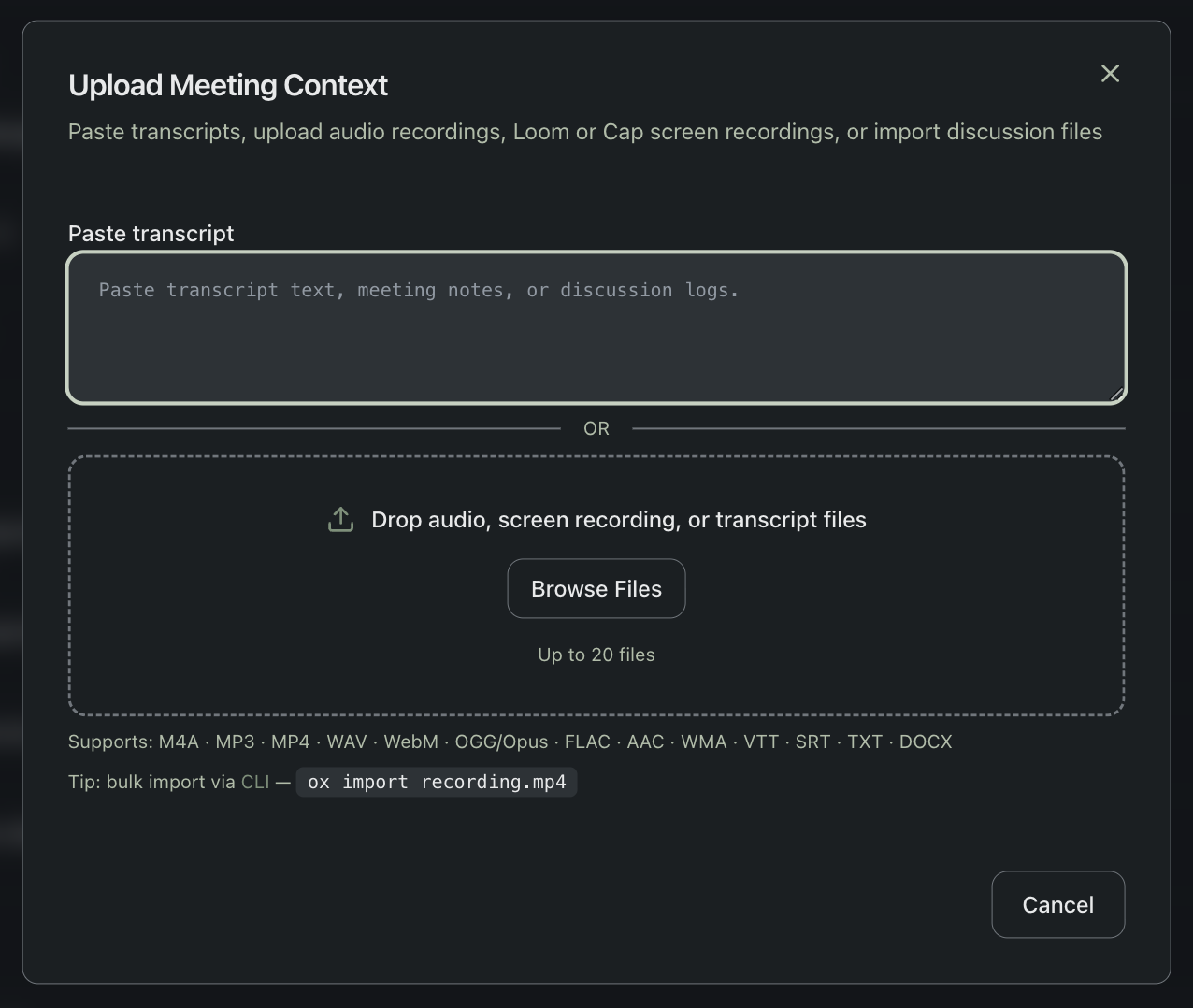
- Go to your team's Media section at sageox.ai
- Click Upload
- Drag your recording into the upload area (or click Browse Files)
- Add a descriptive title — this is how AI coworkers find your recording
Processing starts automatically.
Import from URL
For Loom, Figma, and Cap recordings:
- Go to your team's Media section
- Click Import
- Paste the share URL
- Add a descriptive title
SageOx downloads the video server-side and processes it automatically. No need to download and re-upload.
Supported formats
File upload
| Type | Formats |
|---|---|
| Video | MP4, WebM, MOV, MKV |
| Audio | MP3, WAV, M4A, OGG, FLAC, AAC, WMA |
| Transcript | VTT, SRT, TXT, DOCX (skips transcription) |
URL import
| Source | URL pattern |
|---|---|
| Loom | loom.com/share/... |
| Figma | figma.com/... |
| Cap | capcut.com/... |
Limits
| Limit | Value |
|---|---|
| Max file size | 500 MB |
| Batch upload | Up to 20 files |
| Recommended size | Under 100 MB for fastest processing |
Smaller files process faster. 720p at 15fps is the sweet spot. See Cap Setup for optimal recording and export settings.
What happens after upload
SageOx automatically:
- Extracts audio and transcribes with speaker identification
- Detects scene changes and extracts representative keyframes
- Analyzes keyframes for UI elements, code, and visual context
- Generates a summary with chapters, decisions, and action items
- Commits artifacts to your Team Context
You can track progress in the pipeline view. Processing typically completes within a few minutes.
How AI coworkers use your recordings
Your AI coworkers don't watch videos — they read the structured output:
- Transcript text for searchable narration
- Keyframe descriptions for visual context
- Summaries for decisions and action items
The next time Claude Code starts a session, it can reference your recordings when implementing features or explaining decisions.
What's next
- Video Import — overview of all import options
- Loom Import — Loom-specific guidance
- Cap Setup — optimal recording settings
- Discussions — where imported recordings live
Loom Import | Import Loom Recordings into SageOx
Import Loom recordings into SageOx with a single URL paste. Automatic transcription, keyframe extraction, and AI summarization turn your Loom walkthroughs into searchable team knowledge.
Video Import via CLI | Import Recordings from the Terminal
Import Loom, Cap, and video URLs directly from the command line with ox import. Check processing status, list recordings, and integrate video import into scripts.